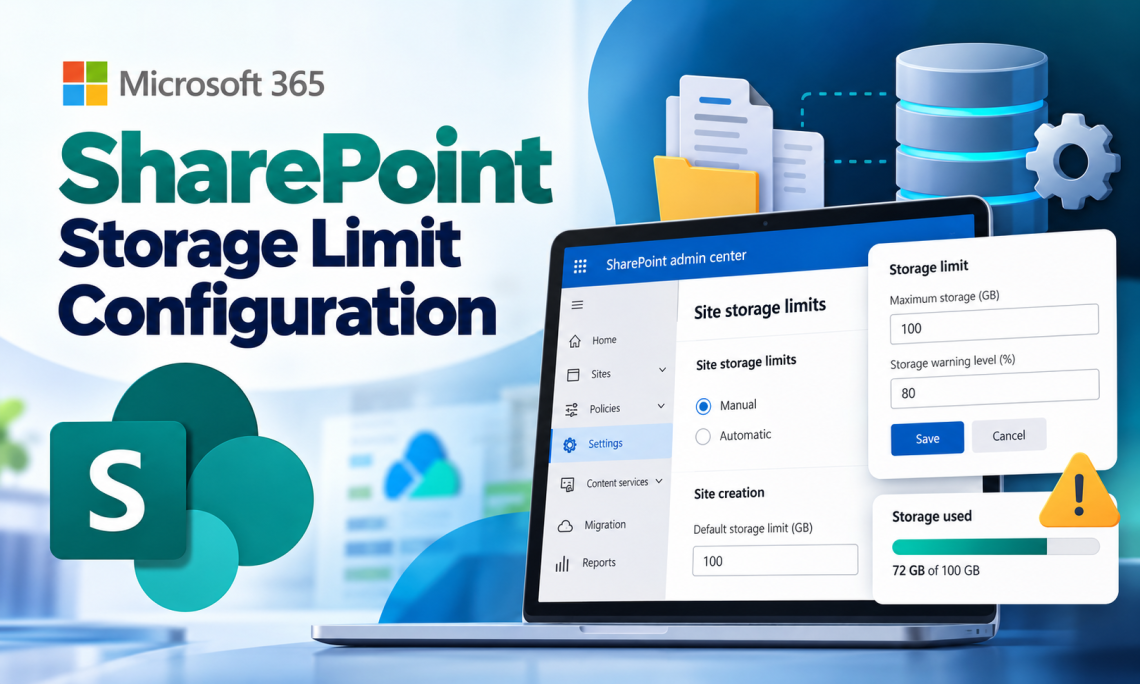
SharePoint storage limits define the maximum amount of storage that can be used by a SharePoint site. Administrators can set individual storage limits and warning thresholds to control how much storage each site can consume.
Configuring storage limits helps administrators manage tenant storage, prevent individual sites from consuming excessive storage, and receive warnings before a site reaches its allocated limit.
This guide covers how to enable manual storage management, configure storage limits for existing sites, apply limits in bulk using PowerShell, and set a default storage limit for newly created sites.
Before applying manual storage limits to SharePoint sites, automatic storage management must be disabled at the tenant level.
Step 1: Disable Automatic Storage Management
- Open the SharePoint Admin Center.
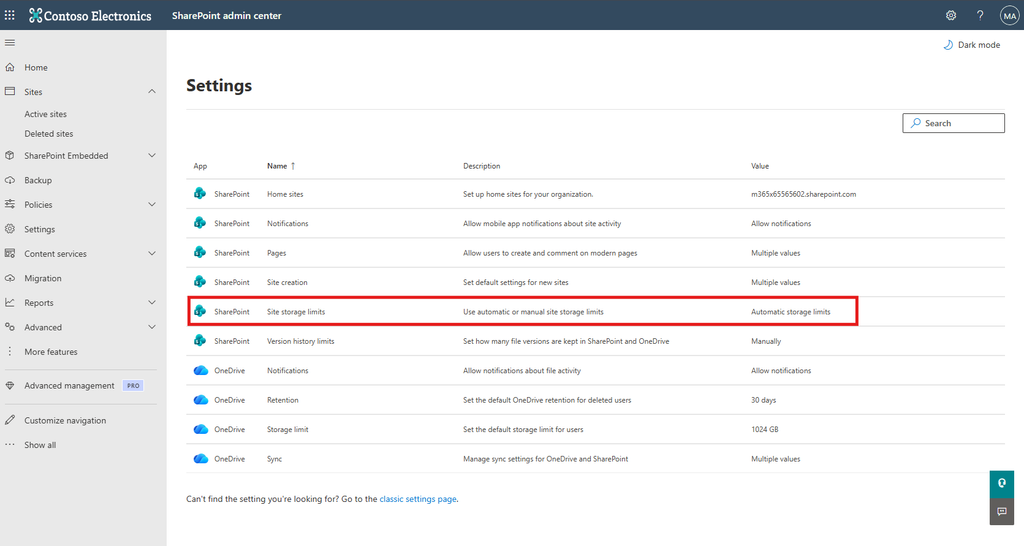
- Navigate to: Settings → Site storage limits
- Under Site storage limits, select Manual.
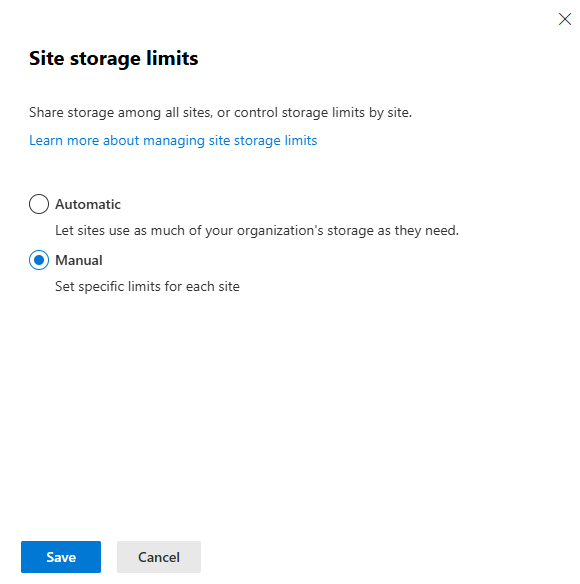
- Click Save.
Step 2: Set Storage Limits for Existing SharePoint Sites
Once manual storage management is enabled, storage limits can be configured for individual SharePoint sites.
- In the SharePoint Admin Center, navigate to:Sites → Active sites
- Select the required SharePoint site.
- Click Storage.
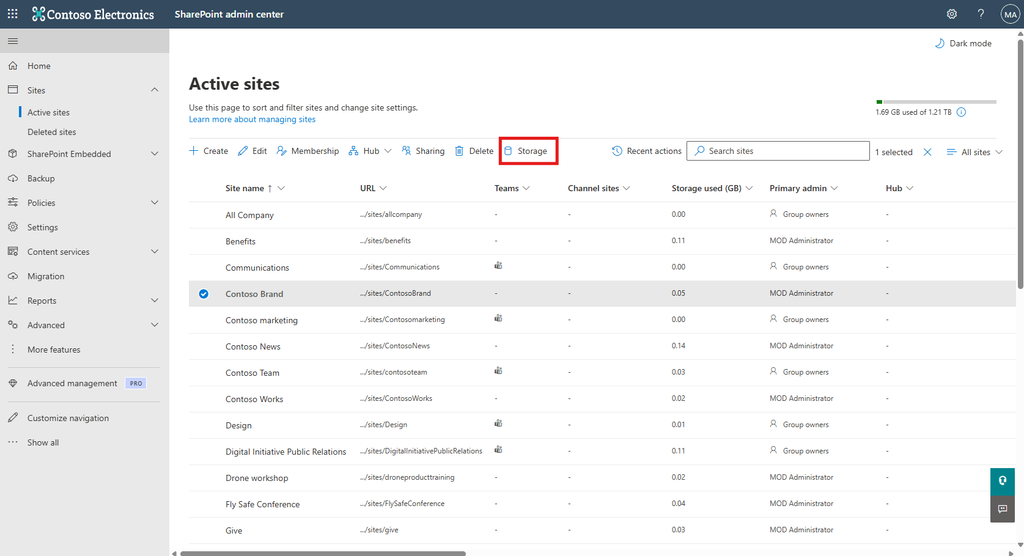
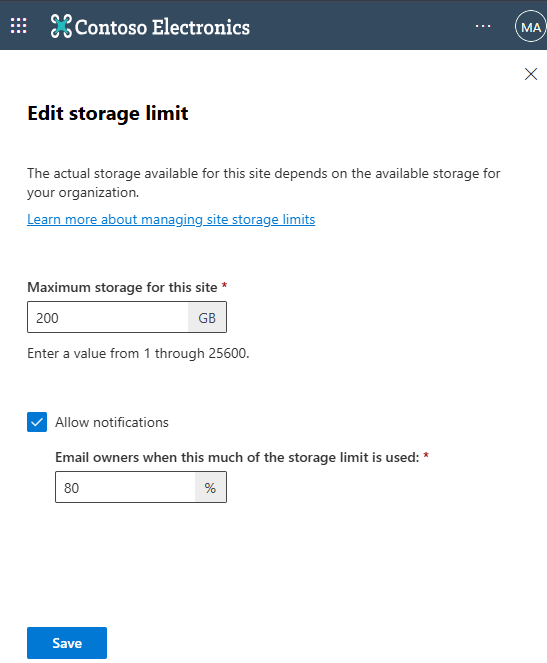
- Under Storage limit, configure:
- Maximum storage – Specify the maximum storage capacity in GB.
- Storage warning level – Specify the percentage at which a storage warning should be triggered.
- Click Save.
Step 3: Bulk Storage Limit Configuration
For environments with multiple SharePoint sites, storage limits can be configured in bulk using SharePoint Online PowerShell.
3.1 Prepare the CSV File
Create a CSV file containing the SharePoint site URL and the required storage quota.
Define the storage quota in MB.
Example:
Url,QuotaMB
https://xxxx.sharepoint.com/sites/ContosoBrand,1126400
https://xxxx.sharepoint.com/sites/ContosoWorks,1126400
https://xxxx.sharepoint.com/sites/Mark8ProjectTeam,2252800Save the CSV file, for example:
C:\Temp\sites.csv3.2 Connect to SharePoint Online
Open PowerShell and run:
Install-Module Microsoft.Online.SharePoint.PowerShell -Force

Connect-SPOService -Url "https://xxxx-admin.sharepoint.com"
Sign in with an account that has the required SharePoint Administrator permissions.
3.3 Apply Storage Limits
Run the following script:
Import-Csv "C:\Temp\sites.csv" | ForEach-Object {

    $quota = [int]$_.QuotaMB
    $warning = [int]($quota * 0.80)

    Set-SPOSite `
        -Identity $_.Url `
        -StorageQuota $quota `
        -StorageQuotaWarningLevel $warning
}
The script:
- Reads each SharePoint site from the CSV file.
- Applies the specified storage quota.
- Sets the storage warning level to 80% of the configured quota.
Change the Warning Level
The warning level can be adjusted based on your requirements.
For example, to trigger the warning at 90%:
$warning = [int]($quota * 0.90)For 75%:
$warning = [int]($quota * 0.75)Step 4: Configure the Default Storage Limit for New SharePoint Sites
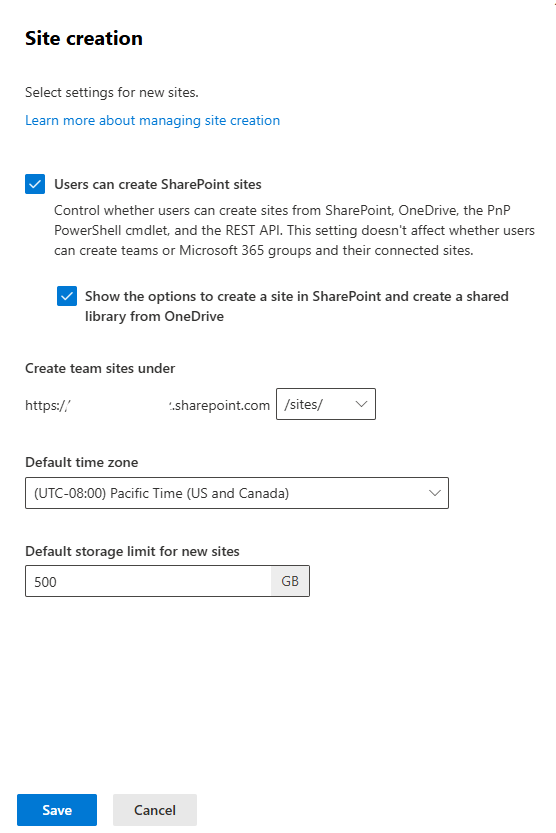
After switching to Manual storage management, a default storage limit can be configured for newly created SharePoint sites.
- Open the SharePoint Admin Center.
- Navigate to:Settings → Site storage limits
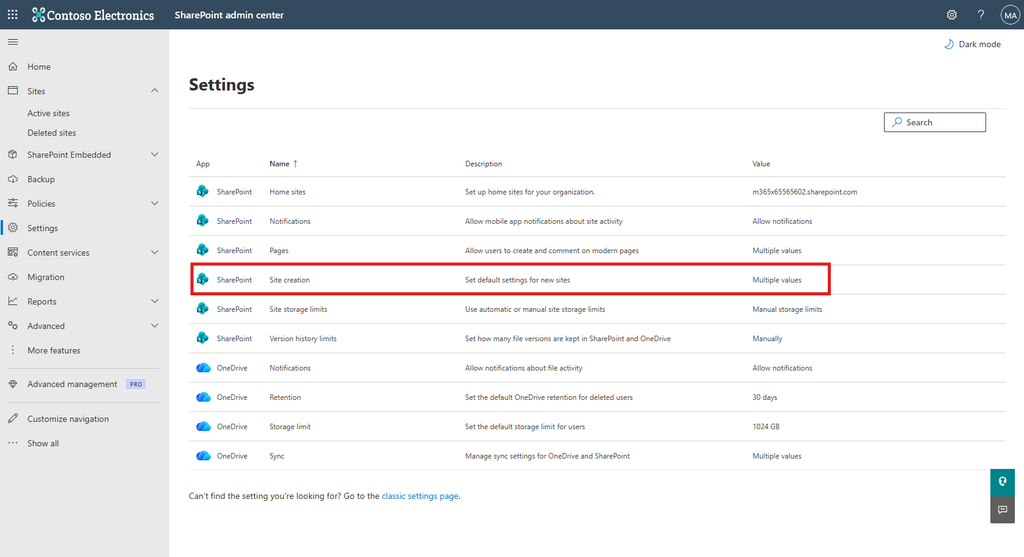
- In the Site creation section, configure the Default storage limit.
- Click Save.
Summary
The configuration process is:
- Disable Automatic storage management and switch to Manual.
- Configure storage limits for existing sites individually or in bulk using PowerShell.
- Configure a default storage limit for newly created SharePoint sites.
- Adjust the storage warning percentage according to your organization’s requirements.