Hi everyone, in this guide we are going to discuss how to create a custom device collection in Microsoft Configuration Manager (SCCM) using a query-based membership rule.
A device collection in Microsoft Configuration Manager (SCCM) is a group of devices that can be used as a target for administrative tasks such as application deployments, software updates, configuration changes, compliance policies, and reporting.
SCCM provides built-in collections, but in many environments, administrators need to target a specific group of devices based on their installed software, hardware, operating system, or other device properties. Custom device collections make it easier to identify and manage these devices without manually adding computers to a collection.
For example, if an administrator needs to identify all computers that have Remote Desktop Manager (RDM) installed, a query-based custom device collection can be created. SCCM evaluates the query and automatically adds devices that match the defined criteria.
In this article, we will create a collection that automatically includes devices where Remote Desktop Manager (RDM) is installed.
Step 1: Create a New Device Collection
- Open the Microsoft Configuration Manager Console.
- Navigate to:Assets and Compliance → Device Collections
- Right-click Device Collections and select:Create Device Collection[Screenshot]
- Enter a name for the collection.Example:Remote Desktop Manager installed Test
- Select the appropriate Limiting collection.Example:All Systems
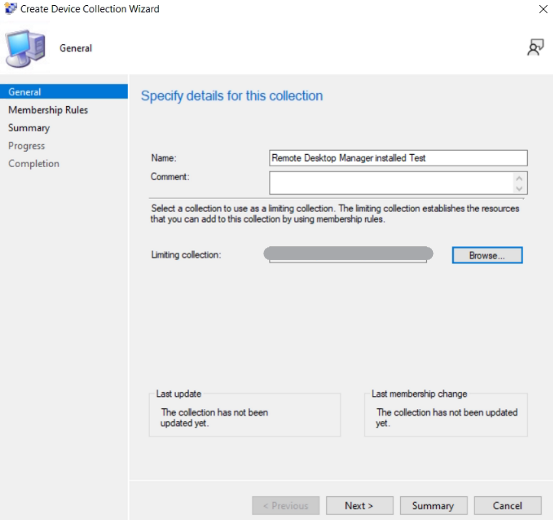
- Click Next.
Step 2: Add a Query Membership Rule
- On the Membership Rules page, click:Add Rule → Query Rule
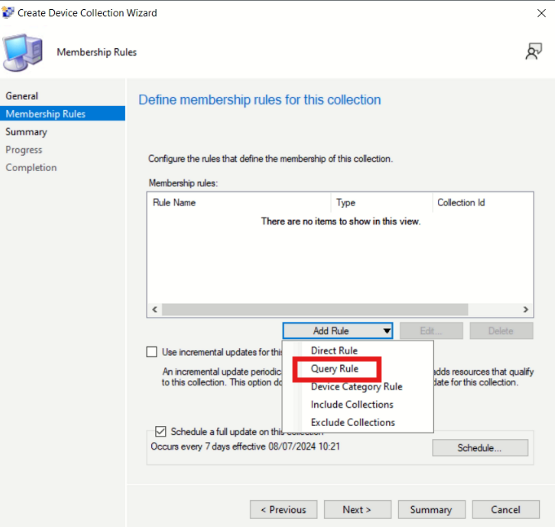
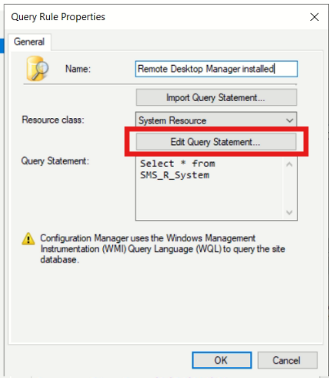
- Enter a name for the query.Example:Remote Desktop Manager Installed
- Click Edit Query Statement.
Step 3: Configure the Query
- Select the Criteria tab.
- Click New
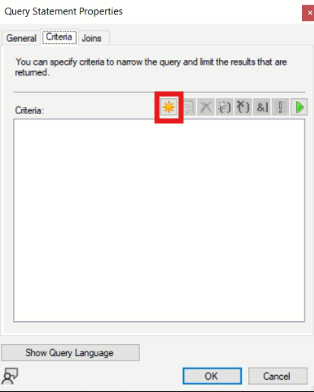
- Configure the query criterion.
Criterion Type:Simple value
Where:Installed Software - ARPDisplay Name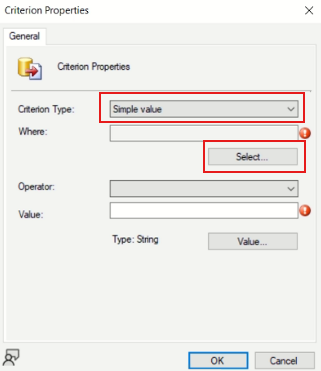
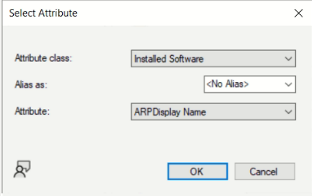
Operator:is like
Value:Remote Desktop Manager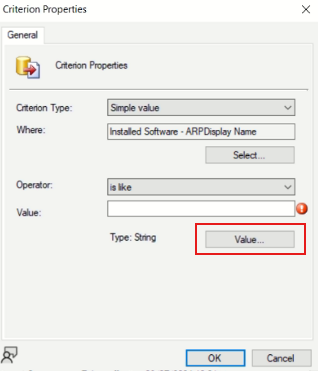
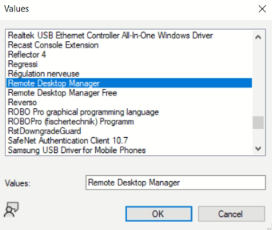
- Click OK.
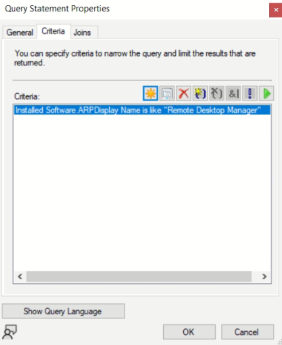
- Click Ok again.
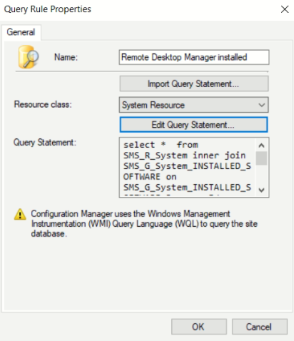
- Click Next
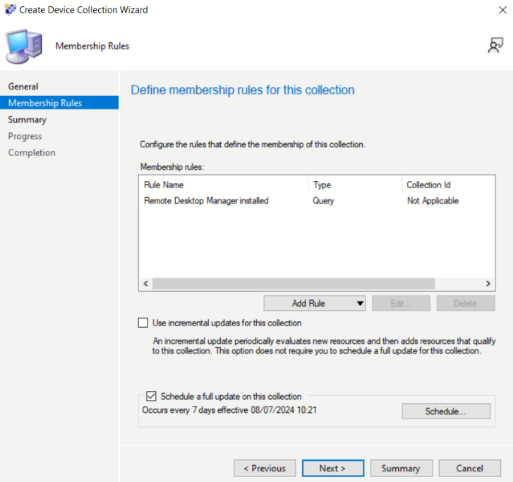
Step 4: Complete the Device Collection
- Review the collection settings.
- Click Next.
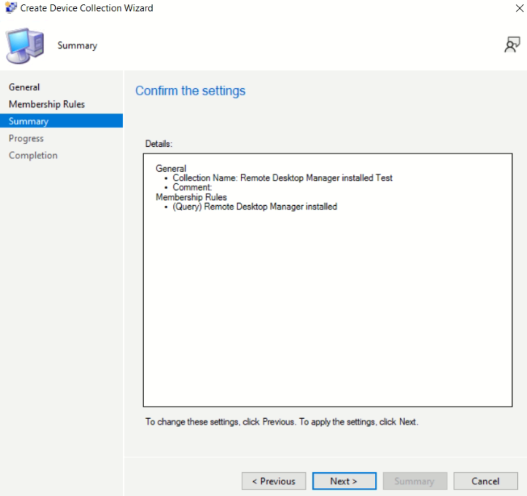
- Click Close.
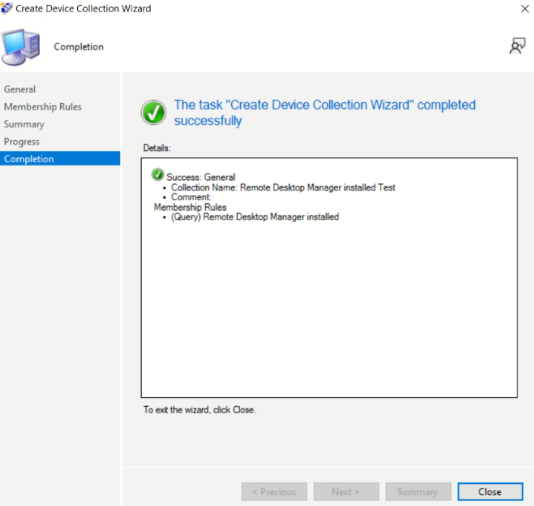
The custom device collection RDM Installed Devices is now created.
Because this is a query-based collection, SCCM automatically evaluates the query according to the collection evaluation schedule.
Step 5: Verify the Devices
- Right-click RDM Installed Devices.
- Select:Show Members
- Verify that the devices with Remote Desktop Manager installed are listed.
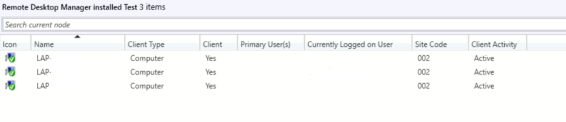
The collection will automatically update as devices install or uninstall Remote Desktop Manager.
Result
You now have a custom SCCM device collection that dynamically identifies devices with Remote Desktop Manager installed.
This collection can then be used for:
- Application deployment
- Software updates
- Configuration changes
- Compliance checks
- Reporting
- Application removal
Conclusion
Using query-based device collections makes it easier to dynamically identify and manage specific groups of devices in SCCM without manually adding computers to a collection.
In this example, we used Remote Desktop Manager as the application to demonstrate the process. However, the same method can be used for any application detected in SCCM inventory. Simply adjust the query criteria to match the required application name.
You can also create collections using many other available device attributes and query criteria, such as:
- Installed applications
- Operating system
- Device name
- Manufacturer and model
- Operating system version
- Client status
- Hardware inventory
- Software inventory
- User information
- Active Directory attributes
Once the required query is configured, SCCM can automatically evaluate the collection membership and add or remove devices based on whether they meet the defined criteria.
This makes custom device collections particularly useful for software deployments, application upgrades, configuration changes, troubleshooting, compliance, and reporting.
Do you like this personality?
