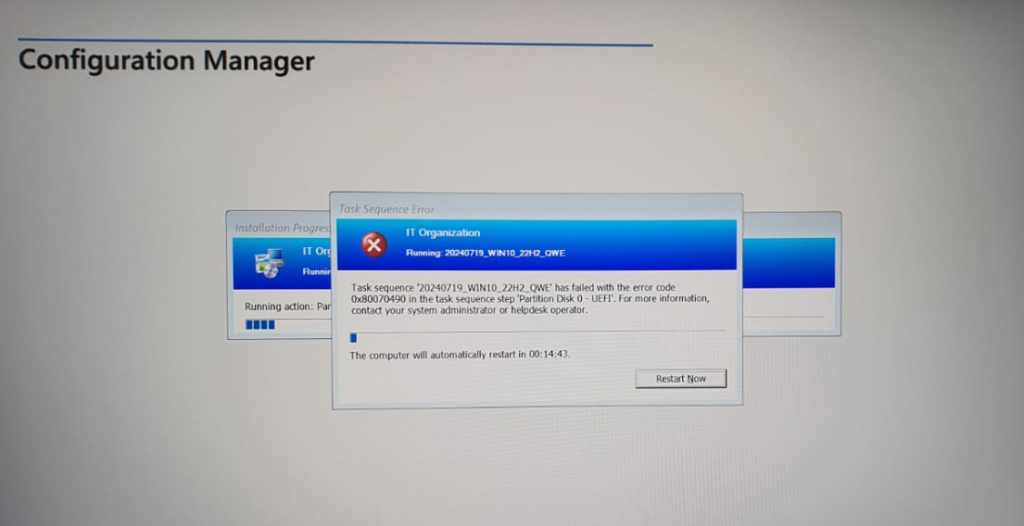
Hi everyone, today we are going to look into a Task Sequence related issue. When deploying Windows using a task sequence, encountering errors can disrupt the process. One such error is:
Task sequence has failed with error code 0x80070490 in the task sequence step ‘Partition-Disk 0 – UEFI.
This error relatedd to BIOS settings, particularly the SATA mode configuration. In this article, I’ll explore the root cause and provide a step-by-step guide to resolve the issue.
By default, many devices comes with the SATA mode set to RAID, which might not be compatible with the task sequence step of disk partitioning. It’s working on UEFI mode.
To resolve this error, follow these steps:
Step 1: Go to the BIOS Settings
- Restart your computer.
- Press the appropriate key during startup to enter the BIOS/UEFI settings (e.g., F2, Del, or Esc, depending on the manufacturer).
Step 2: Locate the SATA Mode Setting
- Navigate to the Advanced or Main section of the BIOS menu.
- Find the SATA Mode or Storage Configuration option.
Step 3: Change SATA Mode to AHCI
- If the SATA mode is set to RAID, change it to AHCI.
- Save the changes and exit the BIOS (usually by pressing F10 and selecting Yes).
Step 4: Retry the Task Sequence
- Boot into the deployment environment.
- Re-run the task sequence.
The error should no longer appear, and the task sequence step “Partition-Disk 0 – UEFI” should complete successfully.
Additional Tips
- Verify BIOS Firmware: Ensure the BIOS/UEFI firmware is up-to-date. Sometimes outdated firmware can cause compatibility issues.
- Use the Correct Boot Mode: Double-check that the system is booting in UEFI mode and not Legacy/CSM mode, as this can also impact disk partitioning.